Quick Start
Get AVLite running in a few minutes: install the package, launch the visualizer, drive the built-in simulator, then run the same profile headless.
Requirements
- Python 3.10+
- Linux, macOS, or Windows with a working Tkinter (bundled with most CPython builds)
1. Install
The core stack depends only on NumPy, Matplotlib, PyYAML, Shapely, NetworkX, SciPy, Pydantic, and ttkthemes. The optional headless dashboard needs rich (pip install rich).
2. Launch the visualizer
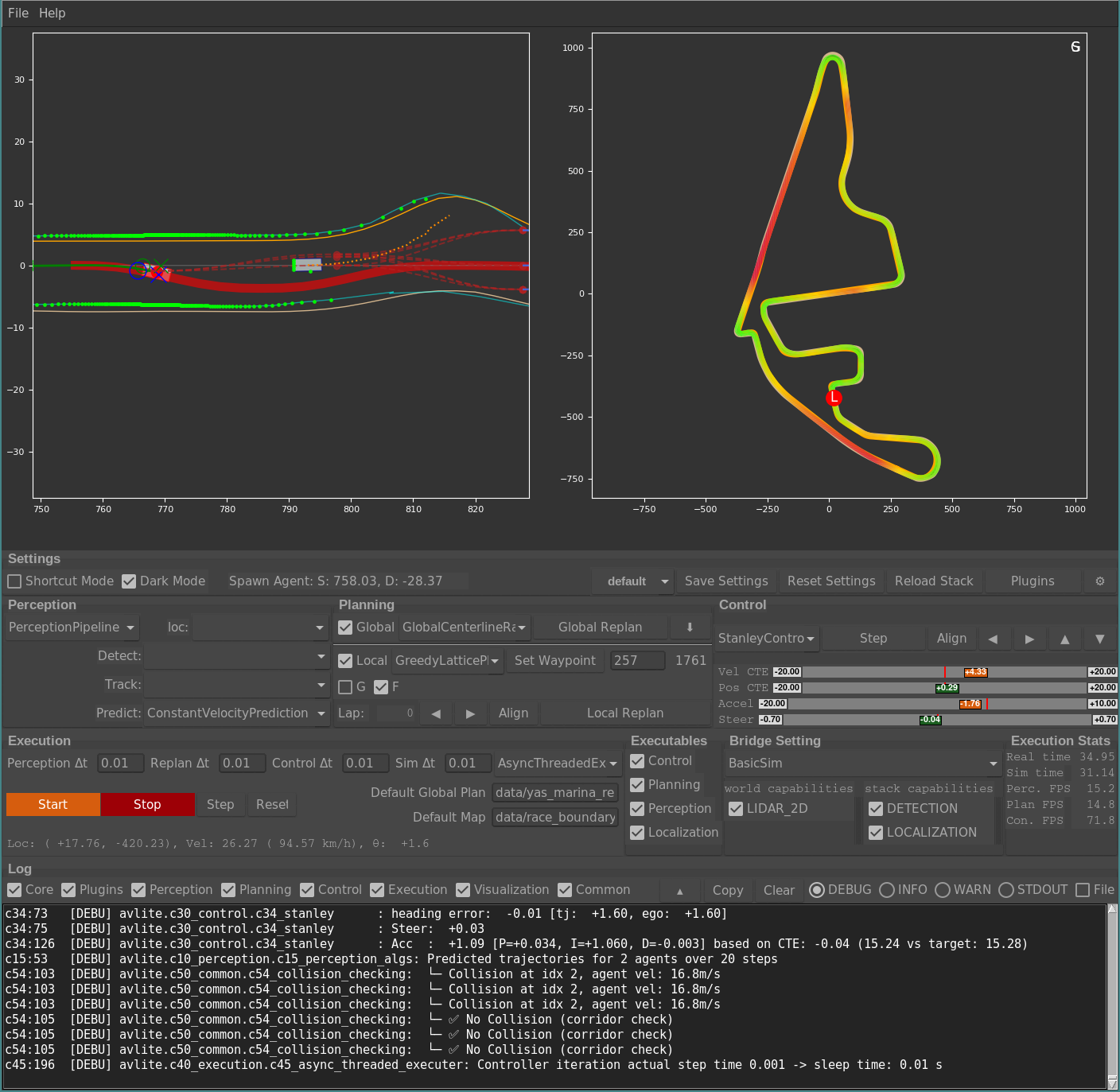
3. Drive the built-in simulator
The default profile uses BasicSim, a dependency-free 2D simulator, so there is nothing else to install.
- Config tab — pick a profile (start with
default). - Start/Stop Stack — start the simulation loop.
- Right-click the plot — spawn NPC vehicles.
- Tune parameters — adjust perception, planning, and control settings live in the GUI panels.
- Save Global Plan — use the ⬇ button in the Planning panel to export the current plan as JSON.
Vim-style shortcuts
The visualizer is fully keyboard-drivable with vim motions for a fast, mouse-free workflow: j/k (or ↑/↓) scroll the log, g/G jump to top/bottom, and Ctrl+u/Ctrl+d half-page scroll. Single-key actions cover planning (n/b/r), control (w/a/s/d), and execution (x/c/t). The on-screen Shortcuts panel lists every binding.
Switching simulators
CARLA, Gazebo, and ROS2 are supported through optional world-bridge plugins. Install the bridge you need, then change the Bridge dropdown in the Config tab. See Plugin Development for how bridges are wired.
4. Save a profile and run headless
Once you have a configuration you like, save it as a named profile from the Config tab, then run it without a GUI — ideal for a robot, server, or CI runner.
# Default profile
avlite headless

# A saved profile
avlite headless -p my_robot_profile
avlite headless my_robot_profile        # positional shortcut

# Tune log noise / loop rates
avlite headless -p my_robot_profile \
    --log-level WARNING \
    --control-dt 0.01 --replan-dt 0.5 --perceive
A live rich dashboard shows FPS, ego state, lap counter, and recent log lines. Press Ctrl+C to stop.
Recommended workflow
- Configure with
avlite— pick the bridge and strategies, and tune parameters in the GUI. - Save the result as a named profile from the Config tab.
- Deploy with
avlite headless -p <profile>. The same YAML profile drives both modes, so what you see in the visualizer is what the robot runs.
Next steps
- Architecture — layers, capability system, and data flow.
- Algorithms — planning algorithms and lattice parameters.
- Settings Naming — YAML key prefixes and validation.
- Plugin Development — build custom perception, planning, control, and world-bridge strategies.